Modern work no longer locks people inside fixed office cubicles. Digital nomads, financial traders, software developers, data analysts, graphic designers, and remote‑first employees carry their entire workspace inside a laptop bag. Yet one major pain point remains unchanged: the physical limitation of a single laptop screenzwdisp.com.
Even high‑end 16‑inch laptops struggle when you need to view trading charts, compare reference documents, monitor real‑time logs, join video conferences, and edit spreadsheets simultaneously. Constant Alt‑Tab window switching eats up focus, increases human error, and slows down overall workflow efficiency. Industry productivity research shows multi‑monitor setups can boost professional output by more than 40 % for knowledge workers, largely by eliminating repeated context‑switching between application windows.
Traditional desktop multi‑monitor arrays deliver abundant screen real‑estate, yet they are bulky, power‑hungry, and permanently fixed to one desk location. For anyone who travels between co‑working spaces, hotel rooms, client sites, and home offices, stationary desktop monitors are simply not practical. This gap in the market has driven explosive demand for portable triple‑screen laptop extenders: hardware solutions that transform an ordinary notebook into a full‑fledged mobile workstation within minutes.
At ZWDISP, our engineering team has spent years refining portable multi‑display hardware built for real‑world mobile professionals. Our triple‑screen product line covers multiple panel sizes from 14‑inch up to 18.5‑inch, with premium IPS panels, universal Type‑C plug‑and‑play connectivity, foldable stable stand architecture, and broad cross‑platform compatibility for both Windows and macOS devices.
In this article, we will walk you through the rise of portable triple‑screen technology, core technical specifications of ZWDISP triple‑screen models, real‑world professional use‑cases, comparison between dual‑screen and triple‑screen portable extenders, step‑by‑step setup guidance, compatibility troubleshooting, and key buying considerations before you invest in your next mobile productivity upgrade. Whether you are researching for personal workflow improvement or sourcing portable display hardware for team deployment, this guide will help you understand exactly what triple‑screen extenders can (and cannot) deliver for your daily work.
Chapter 1: The Rising Market for Portable Multi‑Screen Workstations
Over the past five years, the global portable monitor market has expanded rapidly, fueled by hybrid‑work adoption, remote consulting, and growth in digital nomad communities. Before portable multi‑screen extenders became mainstream, professionals seeking extra screen space on‑the‑go had very limited options.
Many users purchased one standalone portable monitor. A single secondary screen improves multitasking, but still creates bottlenecks for complex workflows requiring three or more visible information streams. Carrying two separate standalone portable monitors adds extra weight, multiple power adapters, tangled cable sets, and requires complex makeshift desk stands every time you relocate your workspace. Setting up two loose portable monitors in a café or hotel room is cumbersome, and stability often becomes a real concern on small, wobbly tabletops.
That market pain is where integrated triple‑screen laptop extenders enter the picture. Instead of managing separate individual monitors, a triple‑screen extender packs multiple IPS panels into one unified foldable unit. When folded, the whole assembly becomes compact enough to slip inside a protective carry bag alongside your laptop. Once unfolded and mounted beside your notebook, it delivers synchronized multi‑display output without complicated assembly work.
Not all triple‑screen extenders on the market are built equally. Early‑generation cheap consumer models suffered from low brightness, poor color reproduction, flimsy plastic hinge structures, driver‑dependent software, and frustrating compatibility failures with newer macOS chipsets. Many budget products require messy multi‑adapter chains, defeating the whole purpose of portable convenience.
ZWDISP’s product philosophy addresses these common pain‑points head‑on. Our triple‑screen lineup prioritizes plug‑and‑play Type‑C implementation, solid stand‑mount mechanical design, professional‑grade IPS panel parameters, and cross‑OS validation for Windows and macOS systems. We design each unit with real travel conditions in mind: frequent folding, transport vibration, uneven temporary desk surfaces, and variable lighting environments in co‑working spaces and hotel rooms.

What types of professionals are driving triple‑screen adoption today? The primary user groups fall into several clear categories:
- Financial traders & market analysts: Require simultaneous visibility for live charts, watchlists, market news feeds, and execution panels without switching windows.
- Software developers & QA engineers: Keep code editors, technical documentation, runtime terminal logs, and application previews open concurrently.
- Data analysts & accountants: Compare multiple large spreadsheets, raw source datasets, dashboards, and reporting notes side‑by‑side.
- UI/UX and graphic designers: Maintain design canvases, asset libraries, reference mood‑boards, and client feedback visible all at once.
- Remote project managers & consultants: Run video calls, project timelines, email inboxes, research materials, and team chat applications in parallel while visiting client locations.
- Digital nomads & hybrid‑office knowledge workers: Want desktop‑level productivity without committing to fixed office equipment.
If you regularly find yourself hiding windows, minimizing tabs, or losing your working context when switching applications, a triple‑screen setup may fundamentally change how you organize your daily tasks.
Chapter 2: Deep Dive into ZWDISP Triple‑Screen Hardware & Specifications
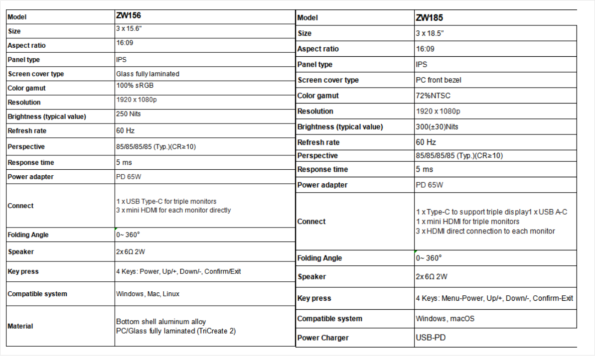
ZWDISP triple‑screen category hosts multiple models covering screen sizes: 14‑inch, 15.6‑inch, 16‑inch, and 18.5‑inch (ZW156 and ZW185 flagship series)zwdisp.com. Every model leverages IPS display panels for wide viewing angles, critical for multi‑screen setups where you view side panels at slight offsets from direct front‑on perspective.
Core shared technical characteristics across ZWDISP triple‑screen series
- Panel Technology: IPS LED backlight panels delivering stable color performance from wide horizontal and vertical viewing angles.
- Brightness: Typical brightness rated at 250 nits (cd/m²). This brightness level works reliably in indoor office, co‑working space and hotel lighting; while direct strong outdoor sunlight will still create reflection challenges, consistent with most portable monitor hardware.
- Contrast Ratio: 1000:1 static contrast delivering deep blacks and clear shadow detail for documents, charts and design assets.
- Color Gamut: 100 % sRGB color coverage across most variants, making these panels suitable for general design work, content review, photo preview, and color‑sensitive business graphics.
- Response Time: 5 ms typical response time for ZW156 / ZW185 models, eliminating obvious motion ghosting for video playback, live market chart updates and casual media consumption.
- Refresh Rate: Native 60 Hz refresh rate, optimized for office productivity workloads.
- Physical Construction: Foldable stand‑mount design, engineered for stability on small desks. The integrated stand removes the need to source separate third‑party monitor stands for travel. When folded, the unit becomes compact for transportation.
- Connectivity architecture: Each triple‑screen unit supports one primary USB‑C port that can drive all three extended displays simultaneously under supported host hardware. In addition, independent Mini‑HDMI ports are available for every individual screen, giving flexible fallback connection options if your laptop USB‑C port does not support video Alt‑Mode outputzwdisp.com.
- Driver‑free plug‑and‑play: No special proprietary driver software installation required for supported Windows and macOS hosts. Simply plug in compatible cables, and your operating system will detect and configure the extended displays automatically.
Model‑by‑model overview
- ZW156 Series (3 × 15.6‑inch Triple‑Screen)
- Resolution: 1920 × 1080 Full‑HD per panel
- Connectivity: 1 × USB‑C for triple‑monitor output; plus three independent Mini‑HDMI ports
- Best‑fit user: Balanced sweet‑spot for most traveling professionals. 15.6‑inch panels deliver substantial workspace without excessive overall weight and folded dimension. Very popular for developers, analysts and remote consultants who frequently move between locations.
- ZW185 Series (3 × 18.5‑inch Triple‑Screen)
- Resolution: 1920 × 1080 Full‑HD per panel
- Connectivity: 1 × USB‑C triple‑display input; three Mini‑HDMI individual panel inputs
- Best‑fit user: Users prioritizing maximum screen real‑estate, mostly working from hotel desks or co‑working tables where surface space is available. Ideal for traders and data professionals monitoring many simultaneous data streams. The larger panel size increases overall unit footprint and weight compared to 15.6‑inch variants, so consider your travel‑bag capacity before selecting this model.
- 14‑inch /16‑inch variants (1920 × 1200 resolution, 16:10 aspect ratio option)
- 16:10 aspect ratio gives extra vertical screen space, excellent for coding windows, long spreadsheets and document reading.
- These models retain 100 % sRGB gamut, IPS wide‑angle panels, Type‑C plug‑and‑play architecture, and foldable stand design.
- Best‑fit: Owners of 14‑inch‑16‑inch host laptops wanting close visual size matching between laptop built‑in screen and extended panels.
Important note on host hardware limitations: Single‑cable Type‑C triple‑screen operation depends on your laptop USB‑C port supporting DisplayPort Alt‑Mode multi‑stream transport (MST). Not every USB‑C port on thin‑and‑light notebooks carries video‑output capability. If your laptop does not support MST multi‑stream over Type‑C, you can still run the triple‑screen unit by using the Mini‑HDMI individual panel inputs, though you will need multiple corresponding cables. This is a hardware constraint of your host laptop rather than a defect of the ZWDISP triple‑screen hardware itself. We cover compatibility troubleshooting in later sections of this blog.
Chapter 3: Real‑World Workflow Set‑ups for Different Professions
Buying extra screen hardware only delivers value when you integrate it into thoughtful workflows. Many first‑time multi‑screen users simply open random windows across panels without intentional layout planning, and fail to unlock the full productivity potential. Below we outline practical, proven screen‑layout templates tailored to common professional roles with ZWDISP triple‑screen extenders.
Scenario 1: Financial Traders & Market Analysts
- Center panel (laptop native screen): Primary trading platform, main price charts, order execution panel.
- Left extended screen: Market watchlist, stock ticker streams, real‑time financial news feed.
- Right extended screen: Secondary timeframe charts, alert dashboards, position logs and research browser tabs.
With this layout, you avoid constantly clicking between browser tabs and application windows during volatile market movement. Critical price signals and news remain continuously visible at a glance. You keep full situational awareness without missing potential trading triggers because of hidden background windows. This is one of the most popular use‑cases for our ZW185 larger‑format triple‑screen units.
Scenario 2: Software Developers & Debug Engineers
- Center panel: Primary code editor / IDE where you write and modify source code.
- Left extended screen: API documentation, framework reference material, project specification documents, design mock‑ups.
- Right extended screen: Terminal console output, runtime error logs, live application preview window, project task management board.
Developers spend huge amounts of time switching between writing code, reading documentation, checking logs and previewing running builds. A triple‑screen layout removes thousands of Alt‑Tab operations each work‑week, preserving focus and reducing mental context‑switching fatigue. Many backend and frontend developers select our balanced ZW156 15.6‑inch triple‑screen model for daily on‑site client visits and remote work.
Scenario 3: Data Analysts, Accountants & Operation Specialists
- Center panel: Main working spreadsheet or analytical reporting workbook.
- Left extended screen: Raw source data tables, reference datasets, source system web portals.
- Right extended screen: Draft report text, calculation notes, KPI dashboards and email correspondence with stakeholders.
When comparing large datasets, jumping between separate spreadsheet files increases risk of copy‑paste mistakes. Laying datasets side‑by‑side across multiple screens lets you visually compare figures directly, improving both work‑speed and data accuracy.
Scenario 4: Remote Consultants & Project Managers
- Center panel: Active document editing or presentation preparation.
- Left extended screen: Video‑conference window, meeting agenda, client call notes.
- Right extended screen: Email inbox, instant‑messaging team chat, project timelines and research browser tabs.
For consultants working at client sites or co‑working locations, you can arrive with only laptop plus folded triple‑screen unit, and rapidly deploy a complete meeting‑ready workspace without relying on poorly‑equipped client‑site desktop hardware.
Scenario 5: Graphic & UI/UX Designers
- Center panel: Main design canvas (Photoshop / Figma / Illustrator workspace).
- Left extended screen: Reference mood‑boards, competitor design screenshots, client feedback comment lists.
- Right extended screen: Asset library, icon sets, color‑palette reference, preview of responsive mobile layouts.
Thanks to 100 % sRGB color‑gamut IPS panels, designers can complete preliminary review and iteration work away from their fixed studio workstation. Please note: for high‑end color‑grading professional print‑production workflows, hardware‑calibrated studio monitors are still recommended for final output sign‑off. ZWDISP triple‑screen extenders excel for mobile iteration, review and client demonstration, rather than as primary final‑calibration displays.
Chapter 4: Dual‑Screen vs Triple‑Screen Portable Extenders: How To Choose
Many customers ask whether they should invest in dual‑screen portable extenders or step‑up to triple‑screen. There is no universal “better” answer — your choice depends entirely on your typical workload, weight tolerance for travel, and budget boundaries.
When dual‑screen portable extenders make sense
Dual‑screen set‑ups (laptop screen + one extra portable panel, or dual‑panel extender units) work well for users with moderate multitasking needs: writing documents while following reference materials, attending video‑calls while taking notes, general‑purpose office administration. Dual‑screen hardware is usually lighter, folds into a smaller package, carries lower price‑points.
Limitations appear once your workflow regularly involves three or more active simultaneous information streams. You will still find yourself minimizing and switching windows, and you will hit hard workspace limits for trading, heavy development, complex data‑analysis tasks.
When triple‑screen extenders deliver clear advantages
Triple‑screen extenders grant you substantially expanded total pixel surface. You can keep three full‑size application environments persistently open without hiding work. This is the mobile equivalent of a desktop multi‑monitor battle‑station, packed into foldable travel‑ready hardware.
Trade‑offs you need to accept:
- Increased overall weight and folded physical dimension compared to dual‑screen hardware. You will need a suitably‑sized laptop backpack or protective carry‑case.
- Larger models (such as ZW185 18.5‑inch triple‑screen) require adequate temporary desk space in hotel rooms or co‑working tables.
- Your host laptop must support MST multi‑stream over Type‑C if you wish to enjoy convenient single‑cable operation. Without MST support you will need to use multiple Mini‑HDMI cables.
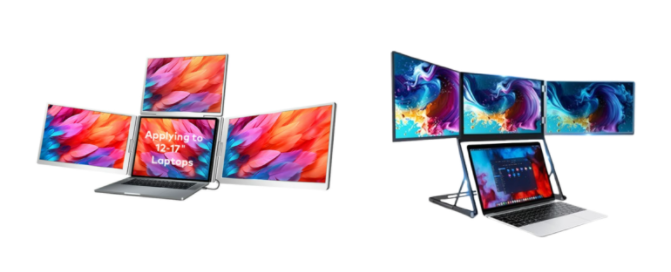
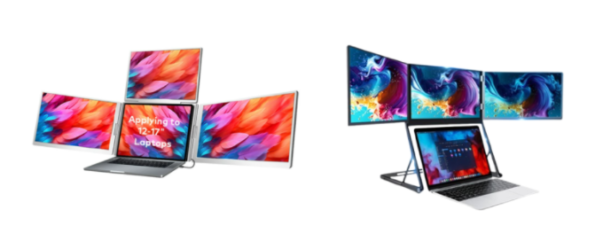
[IMAGE 5: Side‑by‑side product visual comparison: dual‑screen portable extender vs ZWDISP triple‑screen unit; ALT text: Compare dual‑screen and triple‑screen portable monitor extenders]
Quick decision checklist: ✅ Choose ZWDISP triple‑screen if:
- You work as trader, developer, data‑analyst, or heavy multitasking consultant;
- You frequently keep three or more critical windows open simultaneously;
- You accept slightly increased weight and bag‑size for major productivity gain;
- You want a complete mobile workstation rather than a minor screen upgrade.
✅ Choose dual‑screen portable monitor if:
- Your work mostly involves only two concurrent main application windows;
- Ultra‑light travel weight and minimal bag volume is your absolute top priority;
- Your budget is tightly constrained.
Chapter 5: Getting Started: Set‑up, Compatibility & Common Troubleshooting
One of the biggest selling‑points for ZWDISP triple‑screen hardware is plug‑and‑play simplicity. Nevertheless, understanding compatibility boundaries helps you avoid frustration out‑of‑the‑box.
Supported Operating Systems
- Windows: Windows 10 / Windows 11 with Type‑C DP‑Alt‑Mode MST support works perfectly for single‑cable triple‑display.
- macOS: Compatible with modern Intel‑based MacBooks and Apple Silicon M‑series Mac hardware. Note: Apple Silicon hardware has specific multi‑display MST behaviour. If single‑cable triple‑display output does not activate on your Apple‑silicon notebook, leverage the unit’s Mini‑HDMI independent‑panel inputs as reliable alternative connection path.
- Not officially optimized for ChromeOS, Linux distributions, Android mobile devices (limited experimental function only; not guaranteed for full triple‑screen output).
Step‑by‑step quick start workflow
- Unfold the ZWDISP triple‑screen unit, deploy the integrated foldable stand and position it beside your laptop. Adjust hinge angles for comfortable viewing geometry.
- Verify your host laptop USB‑C port supports DisplayPort Alt‑Mode video output and MST multi‑stream (check your laptop manufacturer’s official specifications if uncertain).
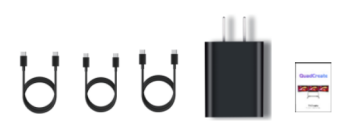
- Connect the primary Type‑C cable between laptop and triple‑screen unit.
- Your operating system should auto‑detect extended monitors. Navigate to display‑settings panel to arrange screen layout, set resolution, choose extend‑desktop mode (do NOT select mirror‑mode unless you specifically require mirrored image).
- If single‑cable Type‑C cannot drive all three panels, switch over to Mini‑HDMI cables for each individual screen panel. This is common on certain thin‑and‑light laptops lacking MST multi‑stream capability.
Most‑frequently‑seen troubleshooting points
- Only one or two screens light‑up under Type‑C single‑cable connection Root cause: Your laptop USB‑C port does not implement MST multi‑stream transport. Resolution: Use the dedicated Mini‑HDMI ports for each screen panel. This is a host‑hardware limitation rather than product fault.
- Screen image appears dim or colours seem washed‑out Check OS‑level brightness slider settings. ZWDISP triple‑screen panels respect host‑OS brightness control. You may also be working under strong direct ambient light; portable‑monitor 250 nit brightness performs best in indoor shaded environments.
- Display arrangement is mirrored instead of extended desktop Enter your system display settings and select “Extend these displays” (Windows) / “Arrangement → Mirror Displays untick” (macOS). Mirror mode duplicates identical content across every screen and defeats multi‑screen productivity purpose.
- Hinge wobble on uneven surfaces While our stand‑mount design improves stability compared to clamp‑on triple‑screen alternatives, extremely wobbly cheap tabletops will still create minor movement. Place on flat solid desk surfaces for optimal performance.
Chapter 6: Buying Guide: Key Factors To Evaluate Before Purchase
When shopping for a triple‑screen laptop extender, resist focusing purely on headline size numbers. Consider these critical evaluation criteria before you place an order:
- Panel Quality & Color Performance Prioritize genuine IPS panels with documented sRGB gamut coverage. Many low‑cost knock‑off triple‑screen products use TN panels with poor viewing angles. When panels sit at side‑positions relative to your eyes, TN‑panel colour‑shift will ruin your user‑experience. ZWDISP triple‑screen series adopt IPS panels with 100 % sRGB for consistent visual performance across side‑mounted displays.
- Connection Architecture & Flexibility Single‑cable Type‑C convenience is fantastic — but you should always confirm the hardware includes fallback Mini‑HDMI per‑panel inputs. If your laptop does not support MST multi‑stream, per‑panel HDMI inputs become your only reliable way to activate all three screens. Avoid budget units offering only one single Type‑C port without alternative input pathways.
- Mechanical Build: Stand‑Mount vs Clamp‑On Designs Two major mechanical form‑factors exist for triple‑screen extenders: clamp‑on models that clip directly onto your laptop lid, and stand‑mount foldable units such as ZWDISP triple‑screen lineup.
- Clamp‑on hardware attaches to your notebook screen bezel; but risks scratching laptop casing, and creates heavy leverage load on your laptop lid hinges. Some newer slim‑bezel laptops cannot physically accommodate clamp‑on fixtures.
- ZWDISP stand‑mount triple‑screen units rest independently on the desk surface. They add zero mechanical stress to your laptop screen hinges, and work with almost any laptop regardless of bezel thickness. The trade‑off is they require a small amount of free desk space for the stand footprint.
- Portability and real‑world travel readiness Review folded dimension and total unit weight. Larger 18.5‑inch triple‑screen models deliver maximum pixels yet add bulk. Confirm whether protective carry‑bag is supplied or must be purchased separately. Think through your typical travel scenario: are you commuting inside a compact backpack, or carrying equipment inside a larger rolling travel bag?
- Brand after‑sales & technical resources Cheap anonymous marketplace products frequently lack usable documentation and after‑sales support. Select established hardware manufacturers that publish clear specification sheets, setup guides, and accessible product support channels, like ZWDISP.
Conclusion
The triple‑screen portable‑monitor category represents one of the most impactful productivity upgrades available for modern on‑the‑go professionals. It solves the fundamental limitation of laptop‑only work: insufficient visible screen real‑estate when handling complex multi‑stream professional workloads.
ZWDISP triple‑screen product portfolio delivers multiple size options (14‑inch up to 18.5‑inch ZW156 / ZW185 series), professional‑grade IPS panels with 100 % sRGB gamut, flexible hybrid Type‑C plus Mini‑HDMI connectivity, stable independent stand‑mount mechanical design, and plug‑and‑play operation for Windows and macOS systemszwdisp.com. Whether you are a financial trader monitoring live market feeds, a developer juggling code and documentation, a data‑analyst comparing datasets, or a travelling consultant working out of co‑working spaces and client sites, a well‑chosen triple‑screen extender transforms your laptop into a genuine portable workstation.
Triple‑screen hardware is not for every user. If your daily tasks only require two concurrent application windows, a simpler dual‑screen portable monitor may satisfy your needs at lower weight and cost. But if you waste significant working hours repeatedly switching and hiding application windows, expanding your workspace with ZWDISP triple‑screen hardware can meaningfully reduce context‑switching fatigue and raise your daily output.
Every professional deserves access to desktop‑calibre productivity, even when you cannot sit down at your permanent office desk. Explore our triple‑screen collection and find the model matching your laptop size, travel‑style, and professional workflow requirements.
If you have questions about compatibility for your specific laptop model, reach‑out to our support team. You can also read our other blog articles covering portable‑monitor buying tips, multi‑screen workflow advice, and hardware guides on the ZWDISP blog.