Complete Setup & Usage Guide for TriCreate Foldable Triple Monitor with Kickstand
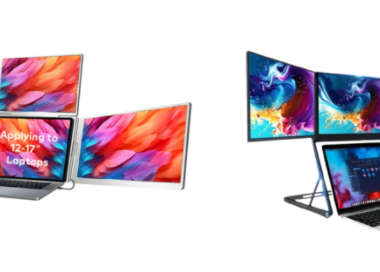
The TriCreate Foldable Triple Monitor with Kickstand is designed to expand your laptop or PC’s display space into three high-quality screens, boosting productivity for work, gaming, creative design, and multitasking. This guide walks you through setup, connection options, system configuration, and troubleshooting based on the official TriCreate Monitor User Manual.

1. Unboxing & Parts Overview
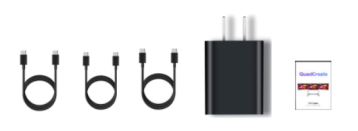
Inside the box, you’ll find:
- TriCreate triple monitor unit
- Adjustable fold-out kickstand
- Power adapter and Type‑C charging cable
- USB‑C to USB‑C cable (full‑function)
- USB‑A to Type‑C cable
- 3 × Mini HDMI to HDMI cables
- Quick start guide & user manual
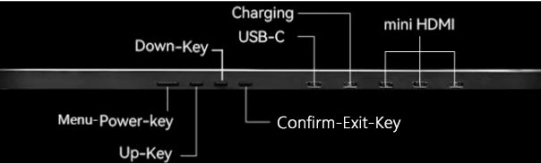
Key ports and controls:
- USB‑C Port: Transmits audio/video signals; also serves as charging input (external power is mandatory).
- Mini HDMI Ports: Connect individually to each monitor.
- Menu‑Power Key: Short press for OSD menu; long press (2–3 sec) to turn monitor on/off.
- Up (+)/Down (–) Keys: Navigate OSD, adjust volume/brightness.
- Confirm‑Exit Key: Enter/confirm settings; long press exits menu.
2. Physical Setup
- Place the monitor on a flat surface in correct orientation.
- Unfold the integrated kickstand until it locks securely.
- Rotate the folded triple monitors to about 135° until fully upright.
- Adjust each screen to your preferred viewing angle.

Folding for transport: Reverse the steps slowly.
⚠ Safety note: The stand mechanism exerts strong compression when closing—always hold the safe grip area, keep fingers away from moving joints, and close steadily.
3. Connection Options
Choose the connection method depending on your laptop/PC’s available ports:
| Method | Requirements | Steps |
|---|---|---|
| Type‑C to Type‑C | Full‑function USB‑C port on laptop | 1. Connect power adapter to monitor. 2. Plug USB‑C to USB‑C cable between devices. |
| USB‑A + HDMI | USB‑A port + HDMI port | 1. Connect power adapter. 2. Link USB‑A→Type‑C cable. 3. Attach HDMI→Mini HDMI cable. |
| HDMI Only | 3 HDMI outputs | Connect each HDMI cable to separate Mini HDMI ports on monitors. |
⚠ External power is mandatory in all cases.
4. Driver Installation
Before first use, install DisplayLink drivers to enable video over USB:
- Download: Synaptics DisplayLink Drivers
- Windows/macOS/Ubuntu: Download and run the installer.
- ChromeOS: Built‑in support — plug and play.
macOS extra step: Enable Screen & System Audio Recordingpermission for DisplayLink Manager under System Settings > Privacy & Security.
5. Configuring Displays
Once connected:
- Windows: Go to Settings > Display, choose “Extend” or “Duplicate” mode, arrange monitor positions, click Apply.
- macOS: Open Displays, arrange screens, set “Use as: Extended display.”
- Ubuntu/ChromeOS: Access Settings > Displays, rearrange and adjust resolution/scaling.
💡 Tip: Use the Identify button in Windows to see monitor numbers on‑screen.
6. Troubleshooting Common Issues
- Partial display working: Check driver installation; ensure correct cable per port capabilities.
- No display: Confirm power connection; long‑press power button to turn on.
- Color mismatch (macOS): Disable True Tone; match color profiles and brightness across screens.
By following this guide, you can quickly set up your TriCreate Foldable Triple Monitor, optimize display performance, and avoid common pitfalls.